Log in
Q247 supports two login methods, set administratively for the whole organization (not per user):
- password + two-factor authentication (MFA): e-mail, password and an additional changing code from an authenticator app on the phone;
- SSO: redirect to the organization's external identity provider, the same account an employee already uses to log in to other company tools, so a separate password for Q247 does not exist at all.
Which method a given organization has is decided by the administrator in Configuration.
The login screen is a single page (/login) that shows different views depending on the step, rather than a separate URL for each step.
Step 1: e-mail
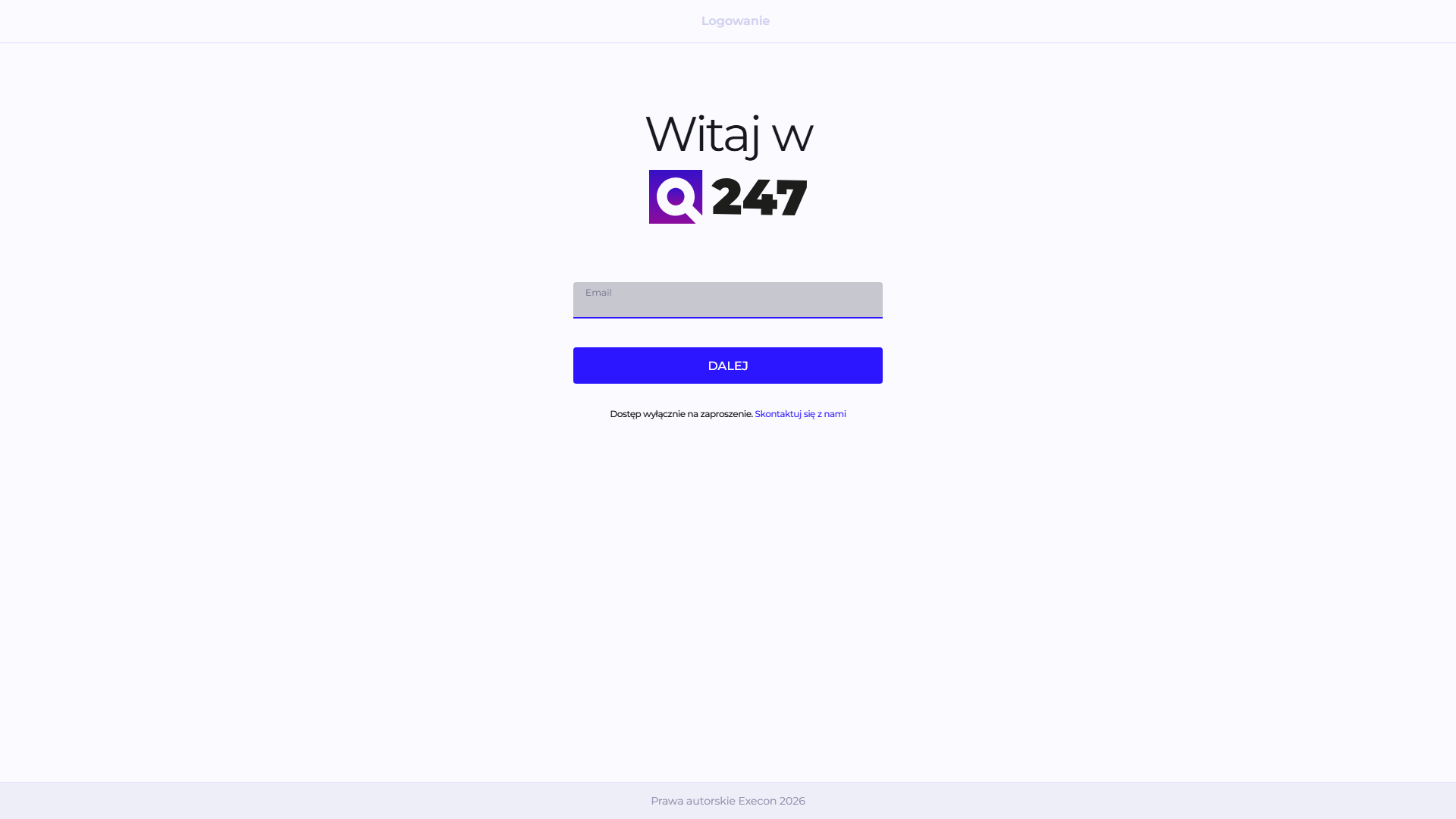
The first step is just the e-mail field and a "Next" button. Q247 has no open registration, hence the text "Access only by invitation" with a contact link instead of an account creation form.
After entering the e-mail and clicking "Next," Q247 checks which method the organization associated with that address logs in with. If it is SSO, the browser redirects immediately to that organization's external identity provider, and the Q247 password screen never appears. If it is password login, step 2 appears.
The message "Invalid e-mail" appears both for an incorrectly formatted address and for an address Q247 does not recognize at all. These two cases are not distinguished in the message text.
Step 2: password
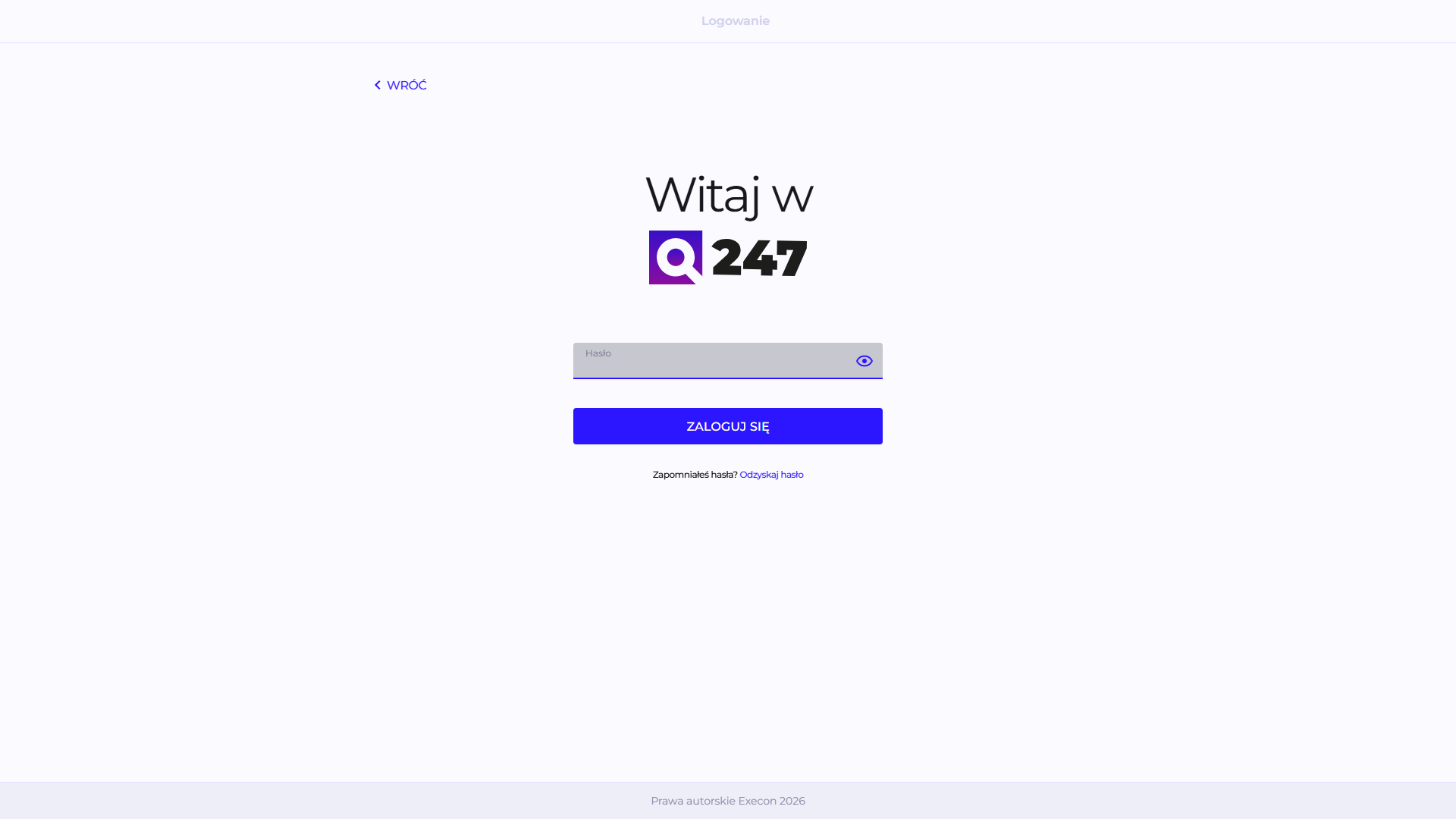
A password field (with a visibility toggle) and a "Sign in" button. Below the field: a "Recover password" link, in case someone has forgotten it (see Password recovery below).
After clicking "Sign in," Q247 first checks whether MFA is enabled for this account, before it even verifies the password itself. If MFA is enabled, step 3 (MFA code) appears, and the actual password check happens only together with the MFA code. If MFA is not yet configured for this account, the password is verified right away, and the user goes straight to the initial MFA setup (see the section below).
An incorrect e-mail or password shows the same general message, "Invalid e-mail or password": Q247 deliberately does not specify which of the fields is incorrect.
If the account exists but is not assigned to any organization, login ends with the message "Your account is inactive because you have not been assigned to any organization. Please contact the administrator." The cause is the account's state, so changing the password will not help here.
Interim step: initial MFA setup
On the first login to an account for which MFA is not yet configured, after entering the correct password (see step 2 above), Q247 shows a screen for syncing with the authenticator app: a QR code to scan (or a text code to enter manually, if scanning is not convenient) and a "Next" button, which leads to step 3, where you now have to enter the first generated code to confirm that the sync succeeded. On every subsequent login MFA is already configured, so this screen does not appear and step 3 shows right away.
Step 3: MFA code
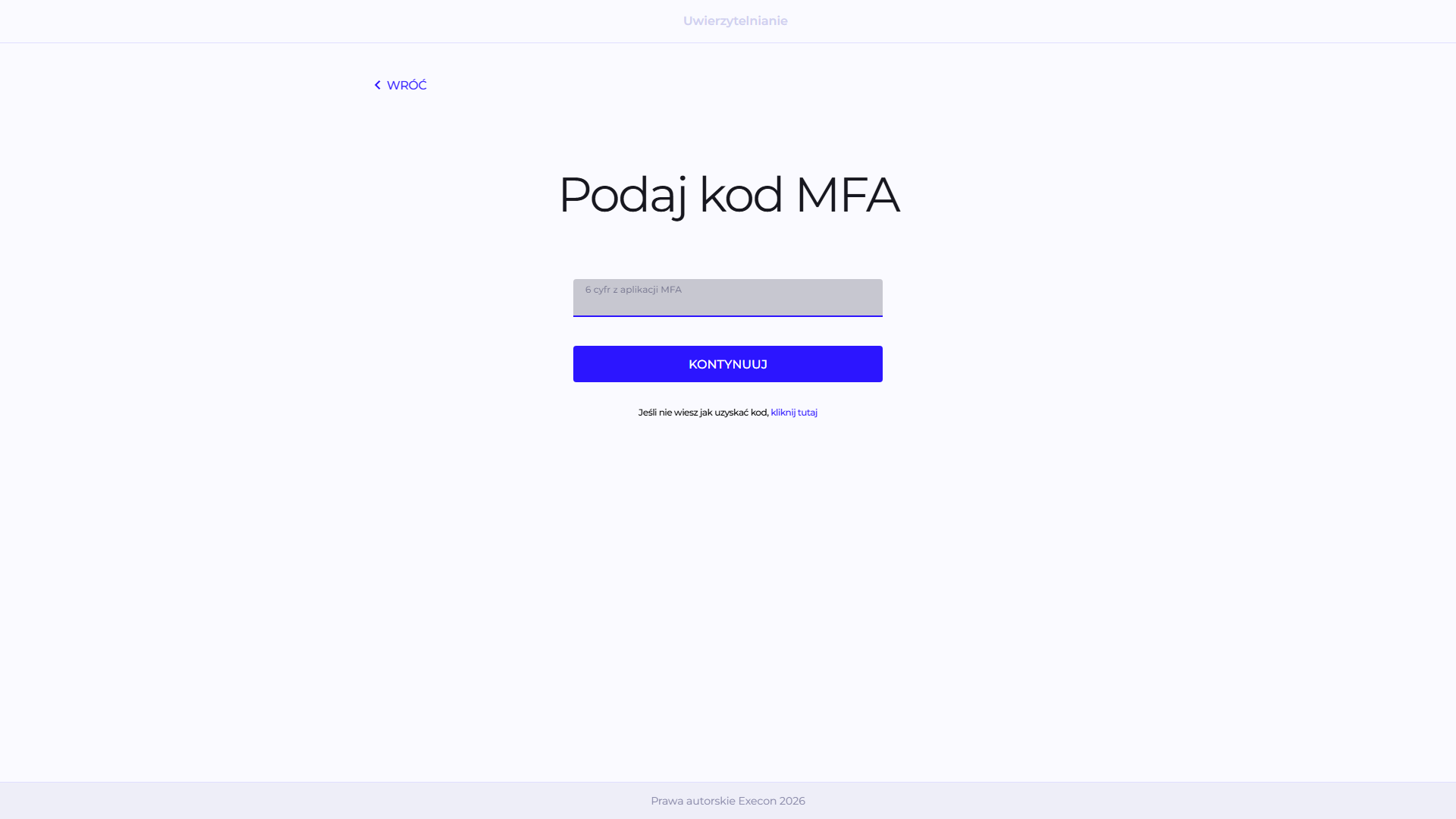
Q247 requires an additional, six-digit code from the authenticator app on the phone, which changes every few dozen seconds. The code is entered in a single field, and the "Continue" button completes the login.
Role of the second factor
MFA, that is multi-factor authentication, requires two independent proofs of identity at login: something you know and something you carry with you. In Q247 the first factor is the password, and the second is a code from the authenticator app on your phone.
The code is generated from a secret stored in the app during the initial setup and from the current time, which is why it changes every few dozen seconds and is valid only briefly.
A password alone can be stolen, guessed or phished, and if the same person uses it on several services, a leak from one of them opens access to the rest. With MFA enabled, knowing the password stops being enough, because logging in also requires a phone with the app. A code captured by glancing at a screen or phished loses its validity after a few dozen seconds.
Authenticator apps
Q247 uses the TOTP standard, so any app supporting it will work. The most commonly used:
- Google Authenticator (Android, iOS)
- Microsoft Authenticator (Android, iOS)
- Authy (Android, iOS, desktop)
- 1Password and Bitwarden, if the organization already uses a password manager
- FreeOTP and Aegis Authenticator, open-source options
Choosing the app is up to the user, unless the organization mandates a specific one. Q247 does not check which app a code comes from.
Below the code field is a "click here" link with a hint for people who do not know where to get the code from.
If you lose the phone with the only authenticator app, regaining access to the account requires contacting the organization's administrator or Q247 support. Some apps, among them Authy, 1Password and Bitwarden, sync secrets between devices and thereby protect against this situation.
If the MFA code is incorrect, Q247 sends the whole form back to step 1 (e-mail), with the message "Invalid e-mail, password or MFA code," instead of leaving the user on this screen to try again. You have to enter the e-mail and password again, not just fix the code.
SSO (login via the organization's identity provider)
For organizations configured for SSO login, step 1 (e-mail) ends with a full browser redirect to that organization's identity provider (Entra ID, Okta or another one, configured by the organization's administrator). Q247 does not show its own password screen or MFA at all in that case, because authentication happens entirely on that provider's side. After logging in there, the provider redirects back to Q247, completing the login automatically.
If SSO login fails (for example due to an error on the identity provider's side), Q247 shows a general SSO login error message, without its own detailed diagnostic screen, because the cause lies outside the application.
Logging out of an organization using SSO skips the e-mail screen (step 1). Instead, a separate "You have been signed out" screen appears with a "Sign in again" button, which resumes SSO login from scratch. With SSO there is nothing to type on the e-mail screen, since a redirect will happen anyway.
Password recovery
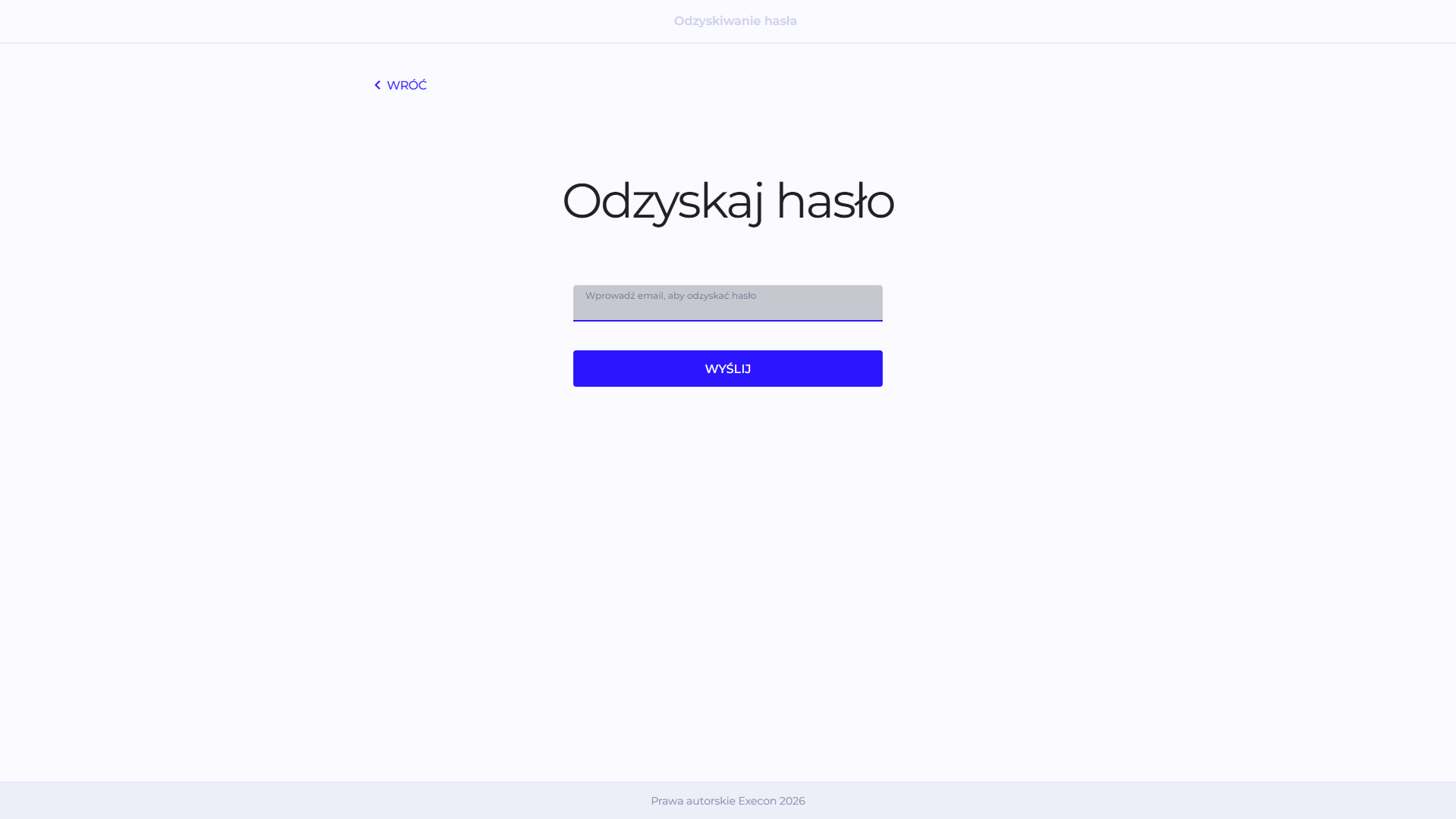
Available only for organizations that log in with a password. For SSO organizations this is unavailable (Q247 is not logged into with a password at all), with a clear message explaining that you need to use SSO login or contact the organization's administrator.
The form only asks for an e-mail. Regardless of whether the given address actually exists in the system, Q247 always shows the same, general confirmation message ("If the provided e-mail address is associated with an account, we will send password reset instructions."). This is a deliberate safeguard, so that it is not possible to use this to check whether a given e-mail has an account in the system.
The link from the password reset e-mail is valid for a limited time (on the order of a few dozen minutes); once it expires, you have to request a new one, and the sent link can no longer be used to set a password. The same mechanism (a different, longer validity period, on the order of two days) handles the password setup link for newly invited users, sent by the administrator rather than self-service.
The new password must be at least 8 characters long and contain at least one special character. The same condition applies regardless of whether the password is being set for the first time or reset.
Session and logout
After a longer period of inactivity in the application, the session expires automatically, and Q247 then moves you back to the login screen, without an additional message explaining why.
Manual logout is available in the user menu (the avatar in the top right corner of the application header).
Multiple organizations on one account
If an e-mail has access to more than one organization, after logging in an organization switcher appears in the top right corner (visible only when there is something to choose from, since there is no need to show a switcher for an account with access to a single organization). There is no separate organization selection screen at login itself: if the page address pointed to a specific organization (for example from a browser bookmark or a link received from someone on the team) and the account has access to it, Q247 logs in to that one; otherwise it logs in to the first available organization, and switching to another happens after logging in, through the switcher mentioned above.
Switching between two organizations that log in with a password happens without re-entering the password. Switching to an organization that logs in via SSO (or away from it) requires going through login again, because it is a different, independent authentication method.
See also
- SSO (OIDC): configuring login through an external identity provider
- Navigation and profile: the top bar, the user menu and the My Profile page