Sources
This is the third tab of the Manage Organization panel: one table with all of the organization's data sources, regardless of which project they are (or are not) assigned to.
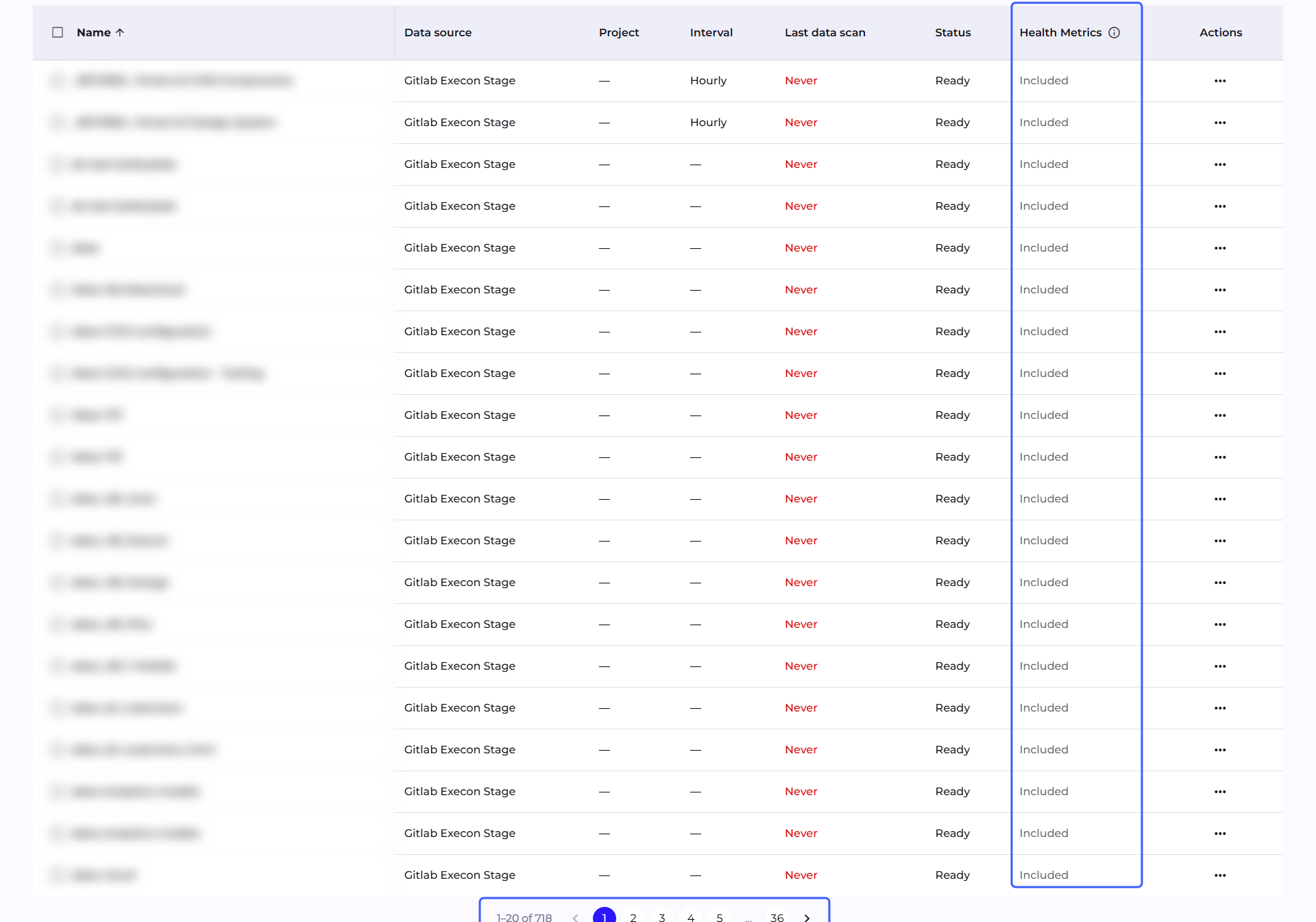
Columns: Name, Data source, Project, Interval, Last data scan, Status, Health Metrics, Actions.
Where the sources on the list come from
Code repositories appear on this list automatically, discovered during scanning by the connector attached to the plugin. Sources are the Git version control systems Q247 supports, that is GitLab, GitHub, Bitbucket, Gitea, Gerrit, Azure DevOps, and repositories added as Generic GIT. They cannot be added by hand from this panel.
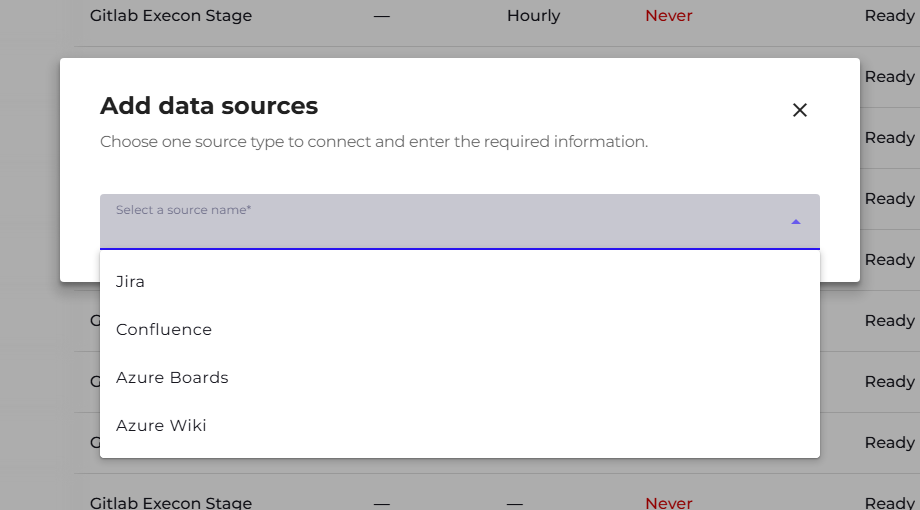
Documentation sources are added with the Add Sources button, which opens the "Add data sources" window. In the "Select a source name" field you indicate the type, and below it you provide its identifier: a project key for Jira, a space key for Confluence, an Area Path prefix for Azure Boards, and a page path prefix for Azure Wiki. The source name is then generated automatically.
The same source can also be attached from the project side, with the Assign Source button in the Sources tab of its details. That form looks different: the type field is called "Choose a data source", and for repositories a second field for choosing the specific repository appears.
Scanning
The "Actions" menu on a repository offers two actions: Start scanning and Assign to project.
"Start scanning" opens the interval choice:
- Hourly
- Daily, with a choice of the time zone the scan should run in
The choice is limited to these two options; a cron-style schedule is not available. The "Last data scan" column shows the date of the last run, "Never" for sources not yet scanned.
For ongoing work we recommend the Daily interval. Q247 metrics describe days and weeks, so a daily refresh is fully sufficient, and a less frequent scan reduces the load on both the plugin and the repository itself.
The hourly interval is worth setting for the duration of a deployment check, so you do not have to wait until the next day to confirm data is coming in, then switch to daily after the first successful run.
Bulk actions
Every row of the table has a checkbox on the left, and the one in the header selects all rows matching the current search and filters, not only the visible page of the table. Selecting at least two sources reveals a bulk action bar above the table.
Two actions are available for sources: Start scanning and Assign to project. Both work the same way as in the "Actions" menu, with one difference: the settings from the window (interval and time zone, or the target project) apply equally to all selected sources. Q247 processes them one by one, without asking for confirmation on each one separately.
Bulk assignment to a project has the same effects as a single one, described in Projects: history moves together with the source, and repositories return to the pre-scan state. So select deliberately, because selecting the whole list after an imprecise search will also catch sources the change was not meant for.
Documentation sources synchronize on a different rhythm, independent of this setting, so the Interval column shows "N/A" for them.
Excluding repositories from Health Metrics
The Health Metrics column (the name stays in English in the interface) shows whether a given repository is included in health metrics. The possible values are Included and Excluded, and a tooltip in the column header explains what it does. By default, no repository is excluded.
You toggle it from the "Actions" menu on a single row, or with the bulk action bar after selecting several sources at once.
Scope of the exclusion
An excluded repository gets no metric state and no node state, in any time window or any view. Its data does not enter either the numerator or the denominator of any of the five metrics, at the project, team, or organization level. It also does not count toward the node count summary.
Excluding some of a project's repositories leaves it in the health summary, but its scores are then calculated only from the remaining repositories. A project with all of its repositories excluded disappears from the health summary section entirely.
The same commits and pull requests in the same period stay untouched everywhere else: on the charts, in Workload, in AI Adoption, in project and participant statistics, in the Work Dynamics Indexes, and in Retention. To hide work in the remaining metrics, use File Pattern Exclusions and the increment visibility threshold.
The change takes effect at the next recalculation and does not require rescanning the repository.
Editing and removing
Documentation sources can be edited (changing the source identifier, the assigned Q247 project, the Active/Inactive status) or removed directly from the "Actions" menu. Automatically discovered repositories can only be edited in terms of project assignment, the source itself is managed on the plugin side.
See also
- Projects: assigning a source to a specific project from its own level
- Connectors: Enterprise Plugin deployments that discover repositories
- Jira, Confluence, Azure Boards and Azure Wiki: the other source types on this list
- Health Metrics: the metrics a single repository can be excluded from