Version v2.4.1

Version 2.4.1 introduces Work Dynamics Indexes - five new developer activity indicators (Activity, Presence, Effort, Throughput, Work Rhythm) displayed in participant tables on the Project, Team, Overview, and Teams views. The definition of productive days has also been updated: they are now counted exclusively on business days. This release gives administrators the ability to disable automatic welcome email notifications, users get date synchronization between tables and charts, and everyone gains a quick channel for reporting issues without a separate login.
Below you will find a detailed description of the most important changes.
Work Dynamics Indexes - 5 New Developer Activity KPIs
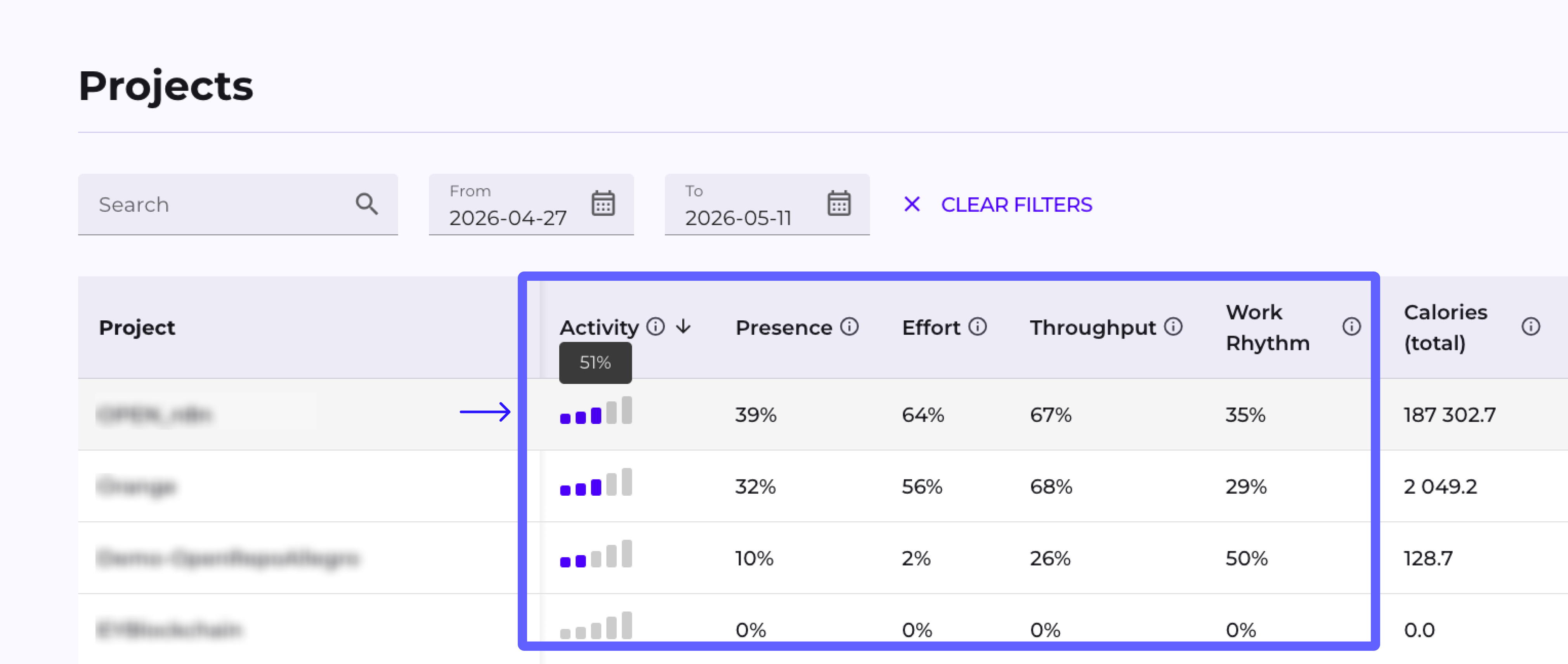
Participant tables on the Project, Team, Overview, and Teams views now display five new activity indicators. Activity (the average of the other four) is shown as a five-level bar chart with a percentage tooltip, and tables are sorted by this value by default.
- Presence - shows how regularly a participant was active during the selected period. Calculated as the ratio of business days with at least one increment to all business days in the range.
- Effort - measures the intensity of a participant's work. Calculated as the average number of Coding Calories per business day, normalized to a threshold of 50 kcal/day (above this value the coefficient reaches its maximum).
- Throughput - measures the number of increments per business day. Calculated separately for code and documentation, with different normalization thresholds (1 code increment or 10 documentation increments per day = 100%).
- Work Rhythm - shows the regularity of work. Calculated as 1 minus the normalized standard deviation of gaps between a participant's active days - the more regular the gaps, the higher the indicator.
- Activity - a synthetic activity indicator. The arithmetic mean of Presence, Effort, Throughput, and Work Rhythm.
Productive / Non-Productive Days Counted on Business Days Only
Productive Days, Non-Productive Days, and Days Between Increments are now calculated exclusively on business days (Monday–Friday), excluding weekends from the base calculation. This eliminates the underreporting of participant metrics when date ranges include Saturdays and Sundays.
Settings in Manage Organization - Welcome Email Toggle
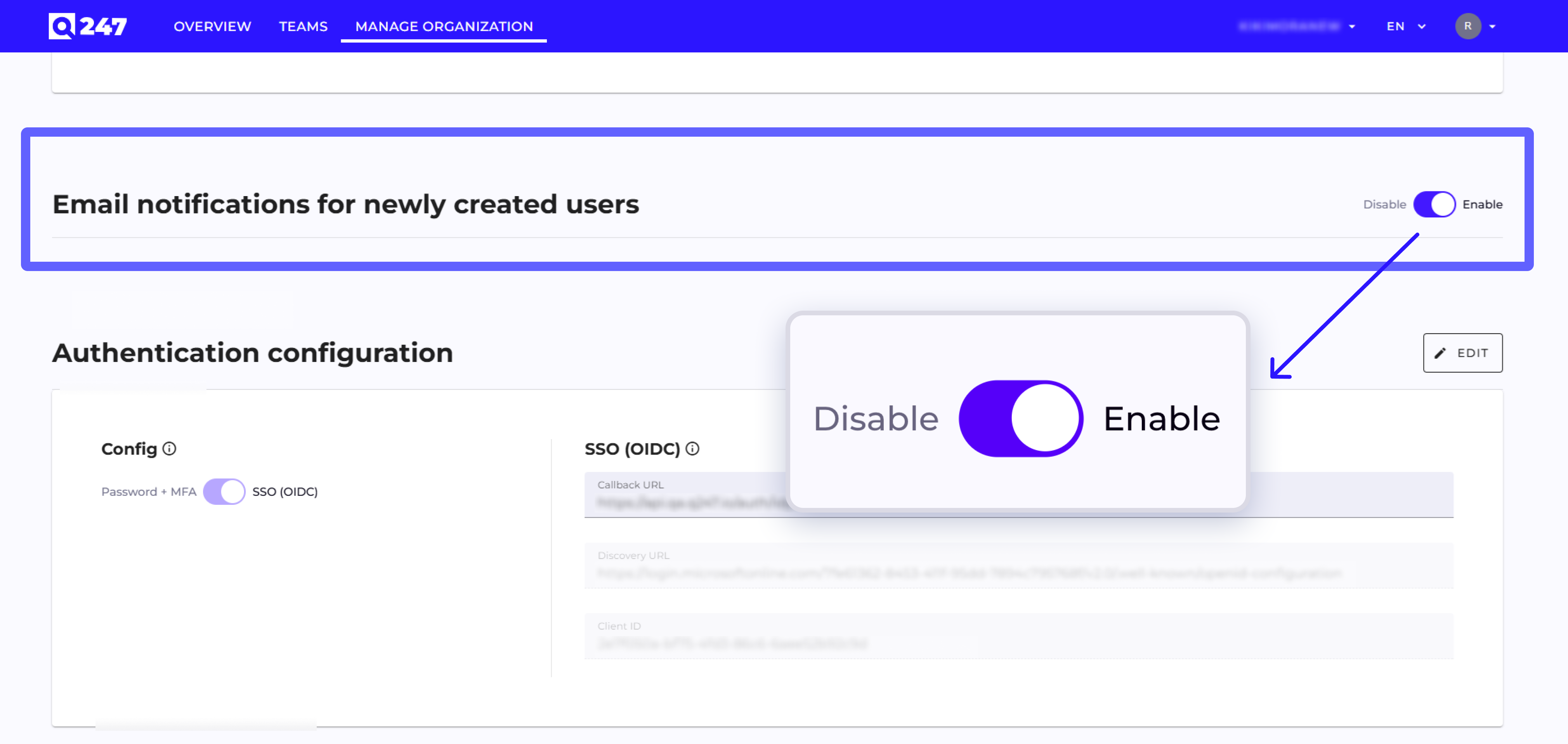
The Settings tab in Manage Organization gains a new section where an administrator can disable the automatic sending of a welcome email to newly created users - including those created as a result of account aliasing. Emails remain enabled by default, so the behavior for existing organizations does not change.
Report An Issue - Submit Issues Without Logging into JIRA Service Management
A Report An Issue button has been added to the application. It opens the JIRA Service Management portal with the user's email address pre-filled. Requests can be submitted without a separate login to the portal.

Default Date Range on Tables and Charts + Date Range Sync
Tables and charts on the Project and Team views are now synchronized by default in terms of date range - changing the range in one place propagates to the other, and a notice appears on the chart when the range exceeds three months. On participant, team, and project lists, the default table range is the last two weeks.
Minor Improvements and Fixes
- Unified display of user names and emails across all views. Names and email addresses shown in the application are now consistently pulled from the user's organizational profile, eliminating discrepancies previously visible for aliased accounts or accounts with a different login address.
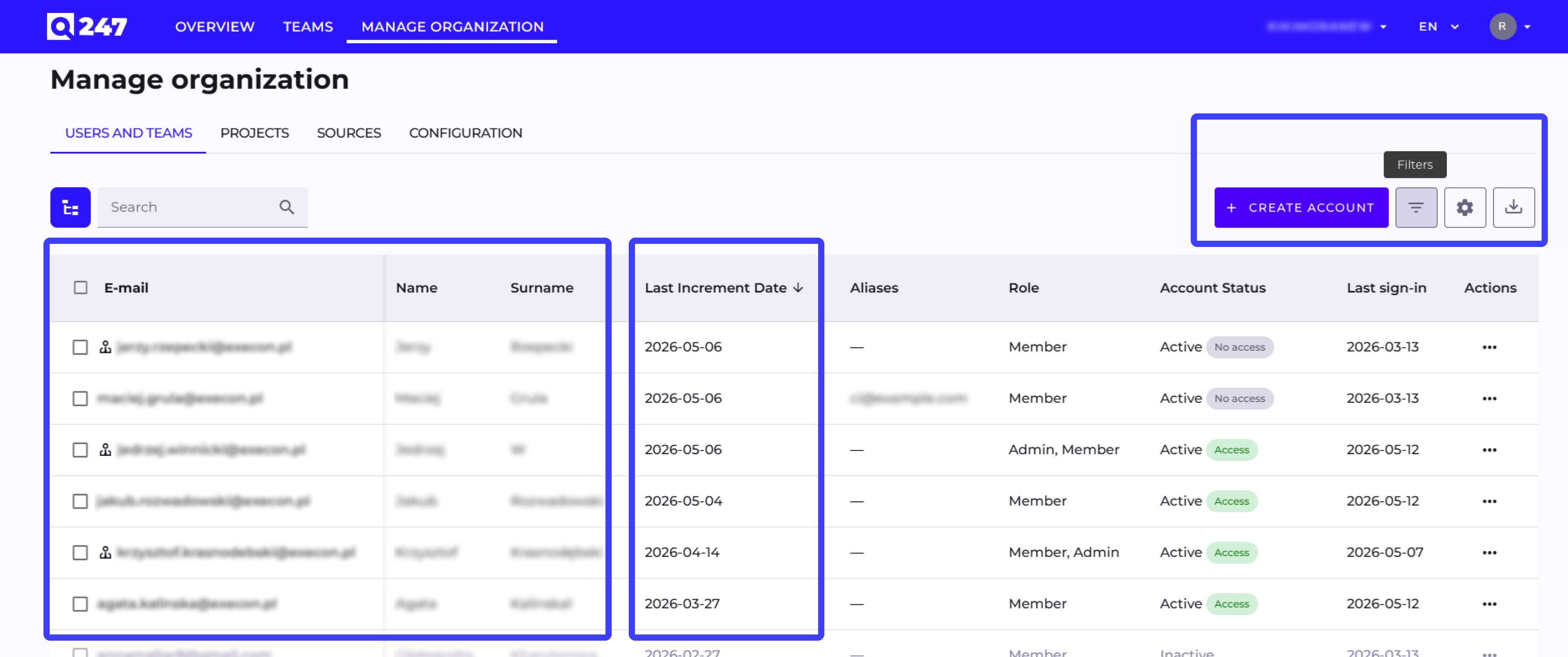
- Filter tooltips + "Last Increment Date" column in the Users view. Filter and table-edit icons now show descriptive tooltips on hover, and the Users table in Manage Organization includes a new "Last Increment Date" column to support decisions about account status.
- Fixes: table column sorting (Polish alphabet and chip columns), first/last name editing for the Member role, a race condition causing 404 errors when switching views quickly, and correct Grade recalculation after changing the Coding/Documentation filter.