SCIM Provisioning
SCIM is an open standard by which the identity provider automatically creates, updates and deactivates accounts in connected applications. Q247 implements SCIM 2.0 and works with any provider compliant with this standard, including Okta, Microsoft Entra ID and Google Workspace.
This integration handles accounts. The login method is configured separately, in SSO (OIDC), and the two work independently of each other. SCIM does not transmit passwords and has no effect on whether the organization logs in with a password or through the identity provider.
Only an account with the Admin role can configure SCIM.
Division of management
| Managed by the identity provider | Managed in Q247 |
|---|---|
| creating accounts and deactivating them | participation in projects and project roles |
| first name, last name, e-mail address, active status | the team's position in the tree |
| the composition of groups, which appear as teams | the manager role in a team |
| optionally the Admin role and the right to log in | teams created manually |
Accounts and teams created manually in Q247 coexist with those managed by SCIM and are not overwritten. The exception concerns a matching e-mail address: if the identity provider links an existing manual account to its identity, that account becomes managed by SCIM from that moment on and is subject to the same rules as the others.
The identity provider owns the team's name and composition, but not its place in the hierarchy. Moving a synchronized team under another team in Q247 survives all subsequent synchronizations. Q247 does not map nested group hierarchies: all groups land directly under the root team, and the structure is arranged afterward on our side.
Three configuration layers
The layers are independent and each successive one builds on the previous one.
Layer 1: account and group synchronization
Enabling SCIM opens the connection. What actually gets synchronized depends entirely on what the identity provider has been configured to send: only accounts, only groups, or both. Q247 assumes nothing here by default.
With layer 1 alone, roles and login access are granted manually in Q247.
Layer 2: administrator group, optional
You point to a synchronized team whose members automatically receive the Admin role and the right to log in. Once saved, the role field in the user's profile becomes locked, because the identity provider becomes its owner. The mapped team disappears from the team tree: from that moment it serves as a permission control group.
Layer 3: access group, optional
You point to a synchronized team whose members have the right to log in. SCIM-managed accounts that do not belong to it get blocked. Accounts with no link to the identity provider are not affected by this.
Administrators do not need to be added to the access group: membership in the administrator group alone grants the right to log in.
The status panel calls it the Access group, while the edit form calls it the Members group. It is one and the same setting.
The label in the form adds that members receive the MEMBER role, but the tooltip next to the same field describes the behavior differently, and in line with reality: members of the group get unblocked, and people outside it get blocked. So this mapping controls the right to log in, and the account receives the MEMBER role at creation by SCIM regardless.
Group selection restrictions
Both selection fields are subject to two independent restrictions.
First, the list contains only groups already synchronized from the identity provider and that are direct children of the root team. Before the first synchronization the lists are empty, and a team lying deeper in the tree will not appear on them at all.
Second, a group that itself contains sub-teams is visible in the list, but grayed out and cannot be selected. The tooltip on such an item reads "Cannot be mapped, this group contains sub-teams." The reason is structural: a mapped group disappears from the team tree, which would cut its children off from the hierarchy.
The first successful synchronization is confirmed by the counters of synchronized teams and users in the status panel.
Resulting permissions for both mappings
| Administrator mapping | Access mapping | In the administrator group | In the access group | Admin role | Right to log in |
|---|---|---|---|---|---|
| off | off | manual | manual | ||
| on | off | yes | granted | granted | |
| on | off | no | revoked | manual | |
| off | on | yes | manual | granted | |
| off | on | no | manual | blocked | |
| on | on | yes | granted | granted | |
| on | on | no | yes | revoked | granted |
| on | on | no | no | revoked | blocked |
An account deactivated by the identity provider will not be able to log in regardless of its group membership. Inactive status always takes precedence.
Permission reconciliation runs automatically: when a mapping is saved or removed, when an account is created, when the composition of a mapped group changes, and when it is deleted.
Step-by-step setup
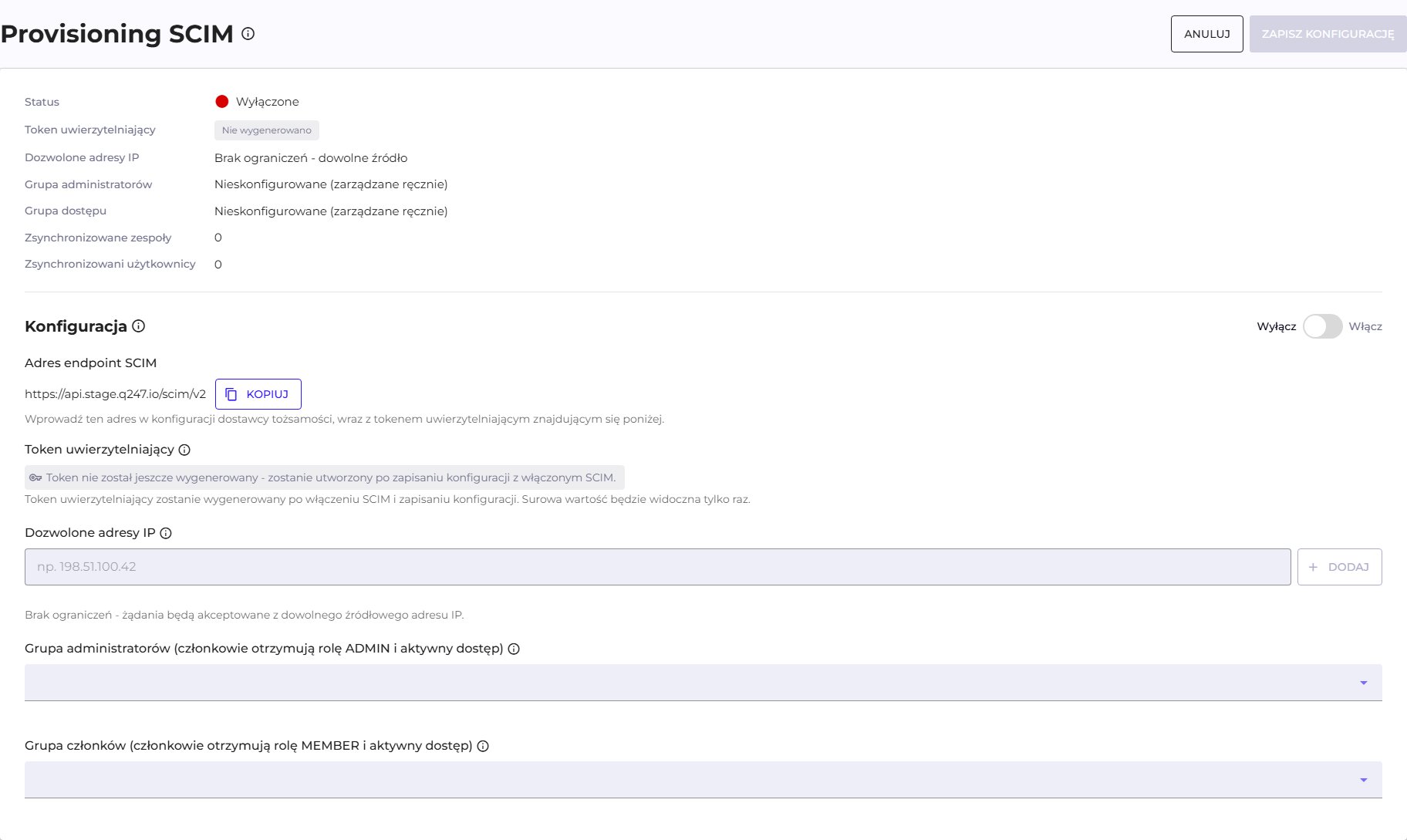
1. Enabling and the token
- In Configuration, go to the SCIM Provisioning section and click edit.
- Switch SCIM to enabled.
- Save the configuration. The token is generated automatically on the first save.
A token reveal screen appears. Q247 stores only its hash, so once you leave this screen the original value cannot be recovered. Copy the token, paste it into the identity provider, check the confirmation box and proceed.
2. Configuration on the identity provider side
In the provider's console, enter the SCIM endpoint address and the token. The address is shown above the token and is shared by all organizations in a given environment; it is the token that determines which organization the data reaches.
| Field | What to enter | Example |
|---|---|---|
| SCIM endpoint URL | the value copied from Q247 | https://api.q247.io/scim/v2 |
| Authentication token | the value from the reveal screen, visible only once | scim_xxxxxxxx |
3. Group mappings, optional
After the first synchronization, go back to edit and point to the administrator group and the access group. Once saved, Q247 immediately verifies all SCIM-managed accounts against the selected group.
4. IP address restriction, optional
By default the endpoint accepts requests from any address, and the only safeguard is the token; the status panel then shows "No restrictions, any source." The list can be narrowed by adding IPv4 or IPv6 addresses one at a time, in the form 198.51.100.42, confirming each with the add button.
CIDR ranges are not supported. Every address used by the identity provider has to be entered separately, which for cloud providers means checking their current address list and watching for its changes.
Status panel
In preview mode the section shows a summary, useful for diagnostics:
| Field | What it says |
|---|---|
| Status | whether the identity provider can currently send events |
| Authentication token | whether the token is configured |
| Allowed IP addresses | the list of addresses, or no restrictions |
| Administrator group | the name of the mapped team, or no configuration |
| Access group | as above, for the right to log in |
| Provisioned teams | the number of teams synchronized |
| Provisioned users | the number of SCIM-managed accounts, excluding aliases |
An "Awaiting synchronization" entry next to a mapping means the mapped group was deleted at the provider or the synchronization has not yet arrived. The mapping is then saved, but inactive.
Renaming a group at the provider does not break the mapping. Q247 tracks groups by identifier, not by display name.
Token rotation
The button to generate a new token is available in preview mode and disabled when you have unsaved changes. After confirmation the old token stops working immediately, so the configuration at the provider must be updated right away.
Rotation is the only solution when the provider reports an authentication error. Because Q247 keeps only a hash, there is no way to check whether the value entered at the provider is correct; the most common causes are copying a fragment of the token or a stray trailing space.
Token rotation re-enables SCIM if it was disabled.
Disabling SCIM
Switching SCIM to disabled stops accepting updates. The token, the IP address list and the group mappings are preserved, so re-enabling loads the previous configuration. Existing accounts and teams are not deleted or changed.
Fields taken over by the identity provider (first name, last name, e-mail address, Admin role) remain non-editable even after SCIM is disabled, because that data still originates externally. Restoring manual editing requires contacting support; it cannot be undone on your own.
Diagnostics
| Symptom | Cause and solution |
|---|---|
| The provider reports an authentication error | incorrect token value at the provider. The only way out is rotation and re-pasting |
| A mapping shows "Awaiting synchronization" | the group was deleted at the provider or the synchronization has not arrived yet. Point to a different group or remove the mapping |
| An account cannot log in even though it is active | the SCIM-managed account is outside the access group. Check its membership at the provider |
| Group lists are empty while configuring mappings | the first synchronization has not passed yet. Confirm with the counters in the status panel |
| An account still carries the SCIM badge after the integration is disabled | the badge shows the origin of the data, and the integration's state does not change it. Removing it requires contacting support |
Changes made at the provider appear in Q247 immediately after they are sent, because SCIM works on a push model. Q247 does not poll the provider, so the pace of synchronization depends entirely on its schedule.
Every write performed by SCIM lands in the audit log, attributed to SCIM, not to a specific administrator.
Restrictions on manual management
A detailed list of the fields and actions that SCIM locks on accounts and teams is in Users and Teams.
See also
- Users and Teams: the effect of synchronization on accounts and teams
- SSO (OIDC): login, configured independently of SCIM
- Permissions: what the Admin role actually gives